Best CS2 Settings for FPS, Clarity & Aim Consistency
CS2 Video Settings
Setting
Value
Information
Display Mode
Full Screen
Full Screen gives the best performance and lowest input delay by letting your system focus entirely on CS2. Always use this mode for competitive play.
Aspect Ratio
4:3
4:3 stretched makes enemy models appear wider and easier to spot during fast duels. It’s a popular choice among pros for improved target visibility.
Resolution
1280×960
1280×960 offers great FPS while keeping the image sharp. This 4:3 resolution also stretches models, making enemies slightly easier to track and hit.
Refresh Rate
144hz
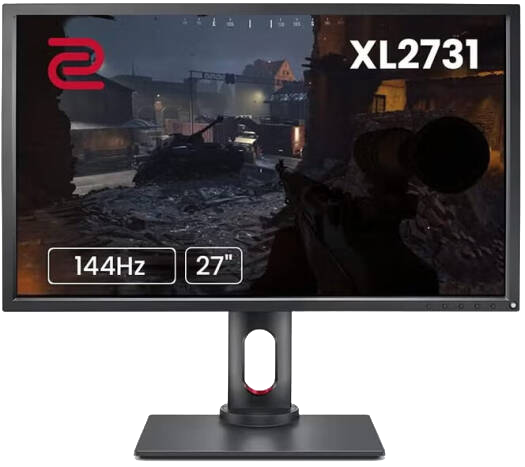
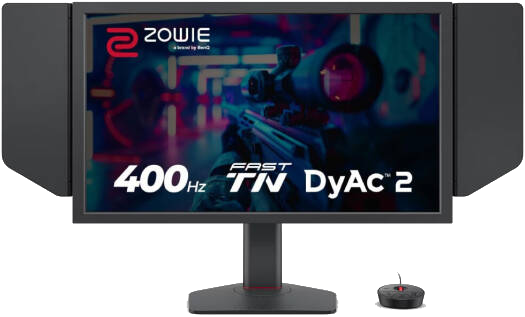
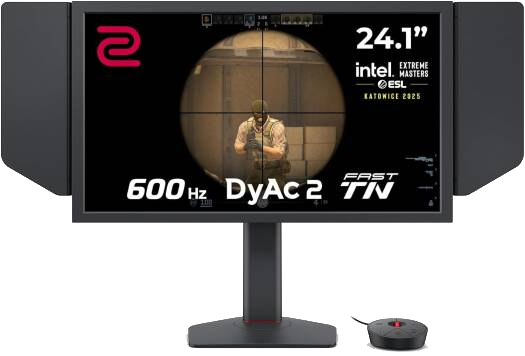
Higher refresh rates make the game feel smoother and more responsive. Set CS2 to your monitor’s highest option (144Hz or above) for the best clarity and aim consistency.
Brightness
110%
A brightness around 110% improves visibility in darker areas and helps you spot enemies more clearly without washing out the image.
CS2 Advanced Video Settings
Setting
Value
Information
Boost Player Contrast
Enabled
Boosts visibility by adding contrast to enemy models, making them easier to see in darker areas and during fast movement.
V-Sync
Disabled
Disabling V-Sync removes input delay and prevents sluggish aiming. Always keep this off for competitive play.
NVIDIA Reflex Low Latency
On
Reduces system latency to make your aim feel more responsive. Enabling this gives smoother shots and faster reaction timing.
Maximum FPS in Game
0
Setting this to 0 unlocks your FPS, allowing CS2 to run as fast as your PC can handle for smoother gameplay and reduced input delay.
Maximum FPS in Menu
200
Limits FPS in the menu to reduce unnecessary GPU load and heat while not affecting in-game performance.
Anti-Aliasing Mode
2X MSAA
Smooths out jagged edges for a cleaner image without overly impacting performance. A balanced choice for clarity and FPS.
Global Shadow Quality
Medium
Medium shadows offer good visibility without hurting performance. Important for spotting enemy positions without extra clutter.
Dynamic Shadows
All
Shows real-time player shadows, helping you detect movement around corners and in close-range fights.
Model / Texture Detail
Medium
Medium textures give clear visual detail without lowering FPS. Helps keep maps readable and enemy models sharp.
Texture Filtering Mode
Trilinear
Improves texture clarity at slight angles without major FPS loss. A solid middle-ground setting for smooth visuals.
Shader Detail
Low
Lower shader detail increases performance and reduces unnecessary visual effects that can distract during combat.
Particle Detail
Medium
Keeps effects visible but controlled. Medium ensures explosions and smokes are readable without heavy performance drops.
Ambient Occlusion
Disabled
Turning this off reduces shadow fluff and boosts FPS. Cleaner visuals make enemy outlines easier to see.
High Dynamic Range
Quality
Enhances lighting and brightness balance. “Quality” offers better visibility without unnecessary glare.
FidelityFX Resolution
Disabled (Highest Quality)
Disabling this ensures the sharpest and cleanest image. Upscaling can introduce blur, so this setting is best left off for competitive play.
Most Used Professional CS2 Resolution
Choosing the right resolution in CS2 has a major impact on visibility, target acquisition, and overall consistency during duels. Different resolutions change the way player models appear, how clear distant enemies look, and how easy it is to track movement across the screen.
Most professional CS2 players still prefer stretched or lower resolutions like 1280×960 because models appear slightly larger, making them easier to hit during fast peek battles. However, 1920×1080 remains a popular choice for players who want the cleanest image quality and better long-range clarity.
There is no single “best” option, but the right resolution is the one that gives you stable FPS, comfortable visibility, and consistent aim. Use these stats as a guide, and test different resolutions until you find the one that fits your playstyle and system performance.
Best Refresh Rate for CS2
Choosing the right refresh rate in CS2 has a big impact on how smooth and responsive the game feels. A higher refresh rate allows your screen to update more often, giving you a more accurate representation of enemy movement. Most competitive players use 144hz, 165hz, 240hz monitors and set CS2 to match that value. This ensures lower input lag, better tracking, and more consistency in aim duels. Always run CS2 at your monitors maximum refresh rate for the best experience.
Best Sensitivity for CS2
Finding the right sensitivity in CS2 is one of the most important steps toward achieving consistent aim. Sensitivity affects how easily you can control spray patterns, track moving opponents, and perform precise counter-strafe shots. Most professional players use a low to medium sensitivity, as it offers better stability and more control during long-range duels. A sensitivity that is too high can make your crosshair shaky, while one that is too low may limit your reaction speed.
Because sensitivity feels different for every player, the best way to fine-tune your setup is by understanding your eDPI–your true aiming speed derived from combining your mouse DPI with your in-game sensitivity. Pro players typically fall within an eDPI range of 800–1600, which allows for smooth, consistent aim regardless of playstyle.
To dial in your perfect sensitivity, start within this range and make small adjustments based on comfort and accuracy. You can also use the BoostLab eDPI Calculator to instantly find your true eDPI and keep your aim consistent across CS2, Valorant, Fortnite, and other FPS games.